This training will consist of how to navigate Siteimprove and leverage it to improve the accessibility of your websites and remediate any issues.
- Overview
- Siteimprove – Dashboard
- Siteimprove – Accessibility
- Siteimprove – Quality Assurance
- Siteimprove FAQs
Overview
Siteimprove is a powerful tool for accessibility monitoring and reporting. It provides detailed insights and ongoing site monitoring to ensure compliance and usability. Siteimprove crawls most of the websites under the uconn.edu domain, including those built on Aurora/WordPress and other platforms in order to provide accessibility insights. Web admins and site managers can get full access to Siteimprove’s reporting dashboard by reaching out to itaccessibility@uconn.edu. Also reach out to ITS accessibility if you have access to Siteimprove and find that your site isn’t currently being scanned.
Accessing Siteimprove
Once you have been granted access to Siteimpove, you will be prompted to set a password via email. Then, you can log into the Siteimprove website with your UConn email and newly created password. Note that you will not be able to log in with your SSO credentials once gaining access. Reach out to itaccessibility@uconn.edu if you have any issues logging on.
Siteimprove – Dashboard
When you first visit Siteimprove, the landing page consists of a dashboard which includes the following information:
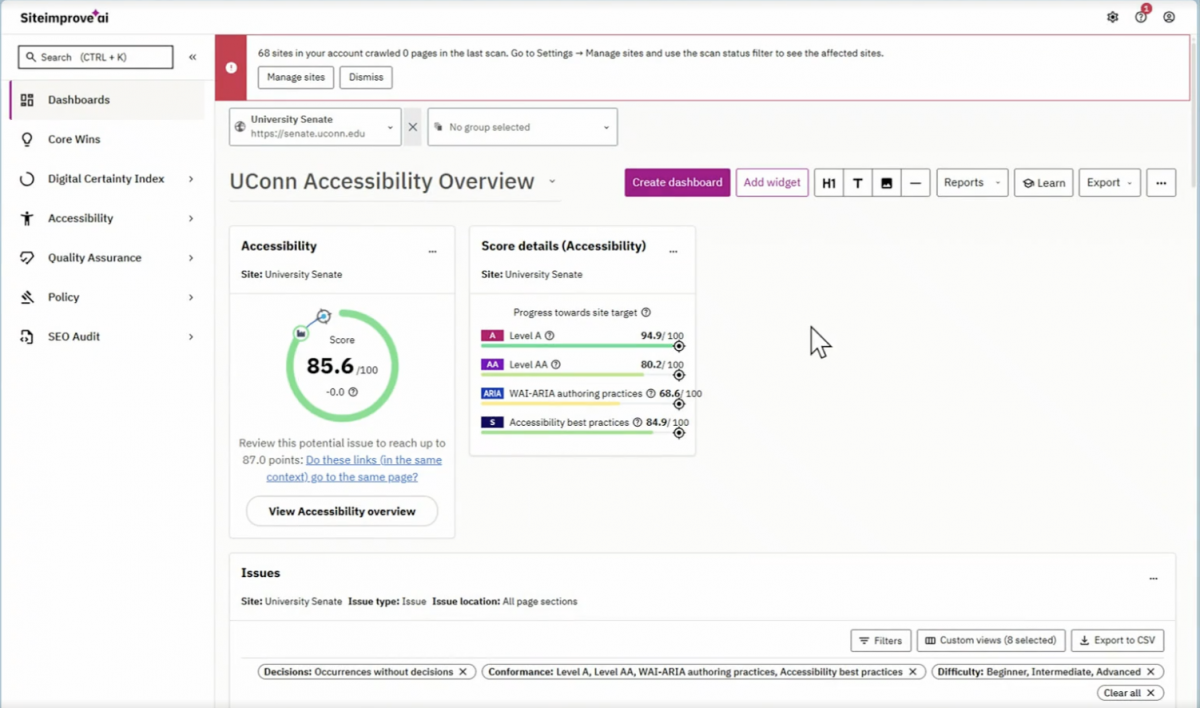
- Accessibility Score with WCAG Details: A percentage rating that shows how well your site aligns with international WCAG web accessibility standards.
- Issues with Pages: A breakdown of the specific compliance barriers found across your site, categorized by severity.
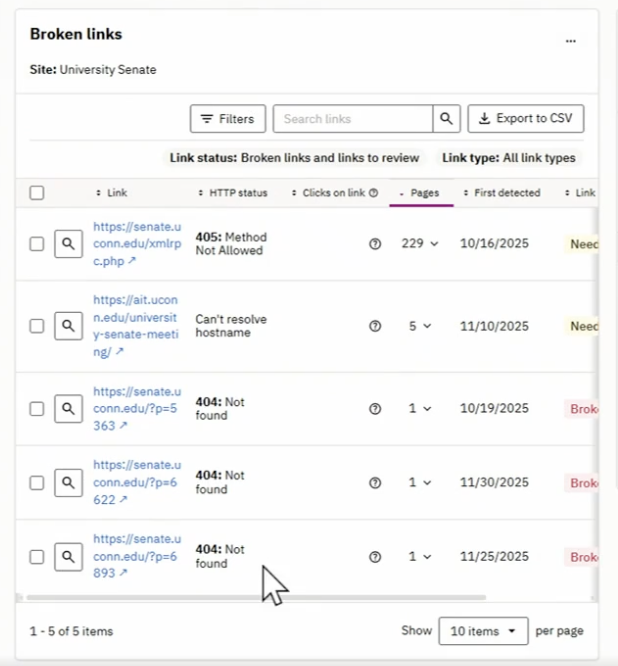
- Broken Links: A count of broken or incorrect links that need to be fixed to restore a smooth user experience.
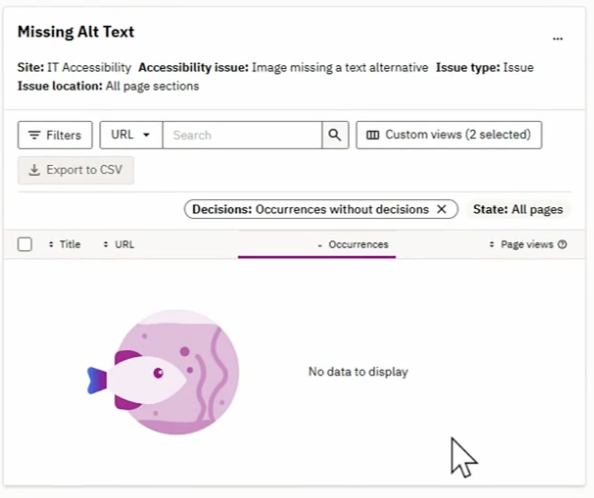
- Missing Alt Text: A list of images that lack text descriptions, which are crucial for screen readers and visually impaired users.
- Misspellings: An automated quality assurance check that flags typos and potential spelling errors across your text.
- Pages with Issues: Individual pages on your site that contain at least one error needing attention.
- Crawl Details: The technical summary of your site’s latest scan, including when it was run and exactly how many pages were reviewed.
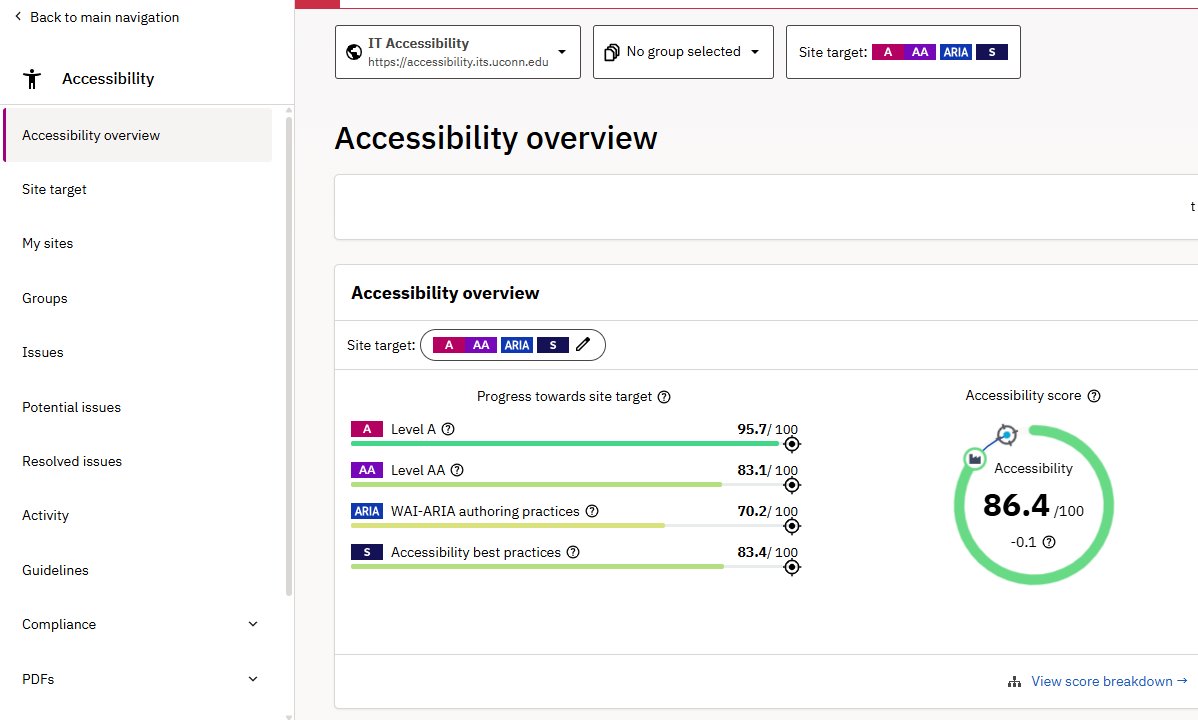
Accessibility Score with WCAG Guidelines
The first viewable item on the Siteimprove Dashboard is the accessibility score, along with the WCAG Accessibility Guidelines:
- Level A – the baseline for WCAG; this score should be as high as possible (>90%).
- Level AA – this score should ideally be above 85%.
Accessibility best practices are also included, but note that Levels A, AA are required by law.
Issues with Pages
After you scroll down past the accessibility score, you can also see the issues with pages on your site:
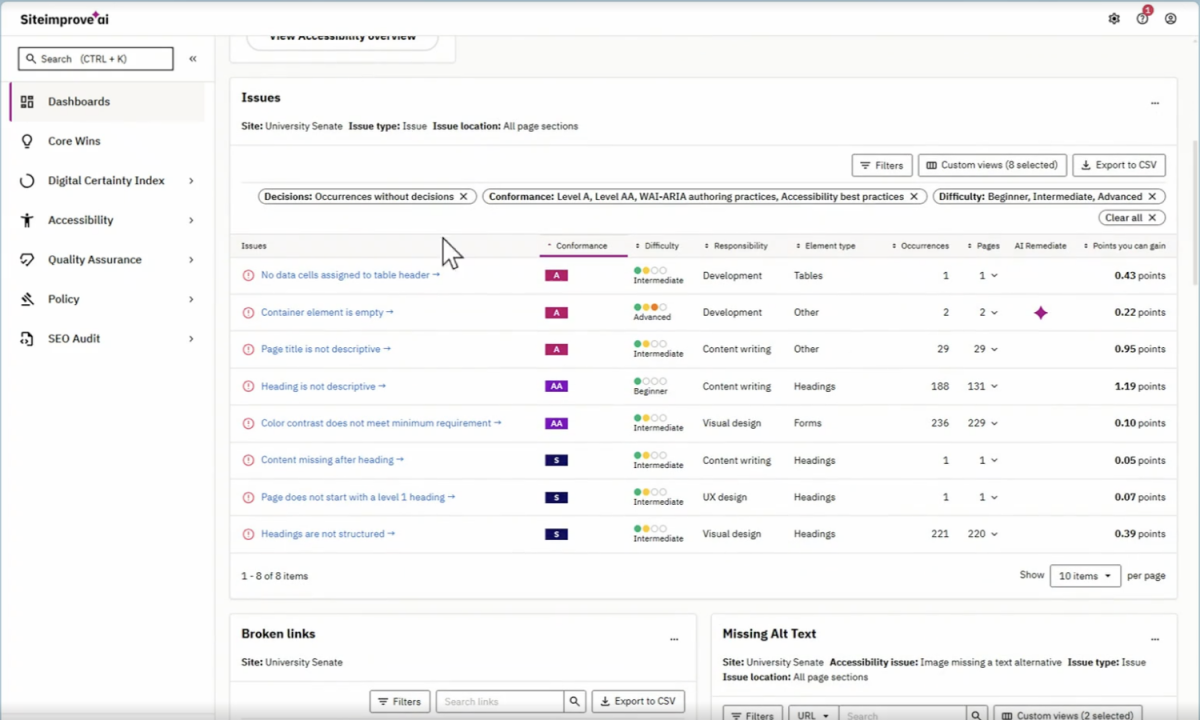
You can see that the Issues section provides the issues, their difficulty, and the number of occurrences of the issue, along with the issue effect on your Siteimprove score.
In the top left of the issues section, you can filter by Issue difficulty. For example, the “expert” category of difficulty can be filtered out. These may be more difficult to fix and you can reach out to the ITS Accessibility team for guidance on how to fix expert-level issues.
Broken Links
The Siteimprove Dashboard also provides a list of broken links that are on the website along with their HTTP status (for example: 404: Not Found, or “Can’t Resolve Hostname.”
Missing Alt Text
If there are images with missing alt text, they will also be highlighted. The image location URL is easily accessible, along with the number of occurrences of missing alt text and the page views. This can also be filtered by URL, and a CSV list can also be exported.
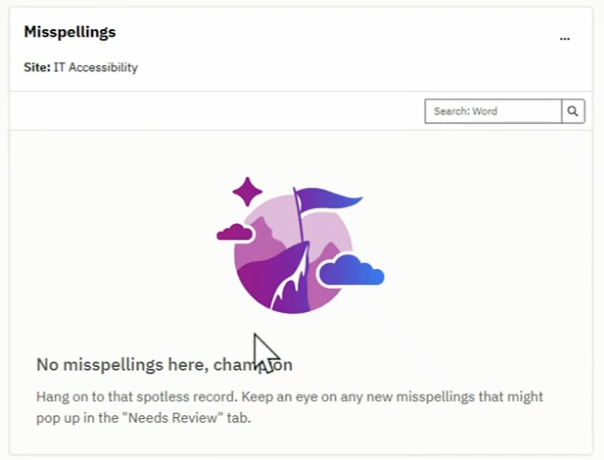
Misspellings
You will also need to ensure that everything is spelled correctly on your site.
- For example, University Communications has advised against writing “UConn” in all caps. This is something that is accounted for in the misspellings section.
You can make updates to the misspellings section and add words that are actually correct, or reach out to ITS Accessibility if something else should be included.
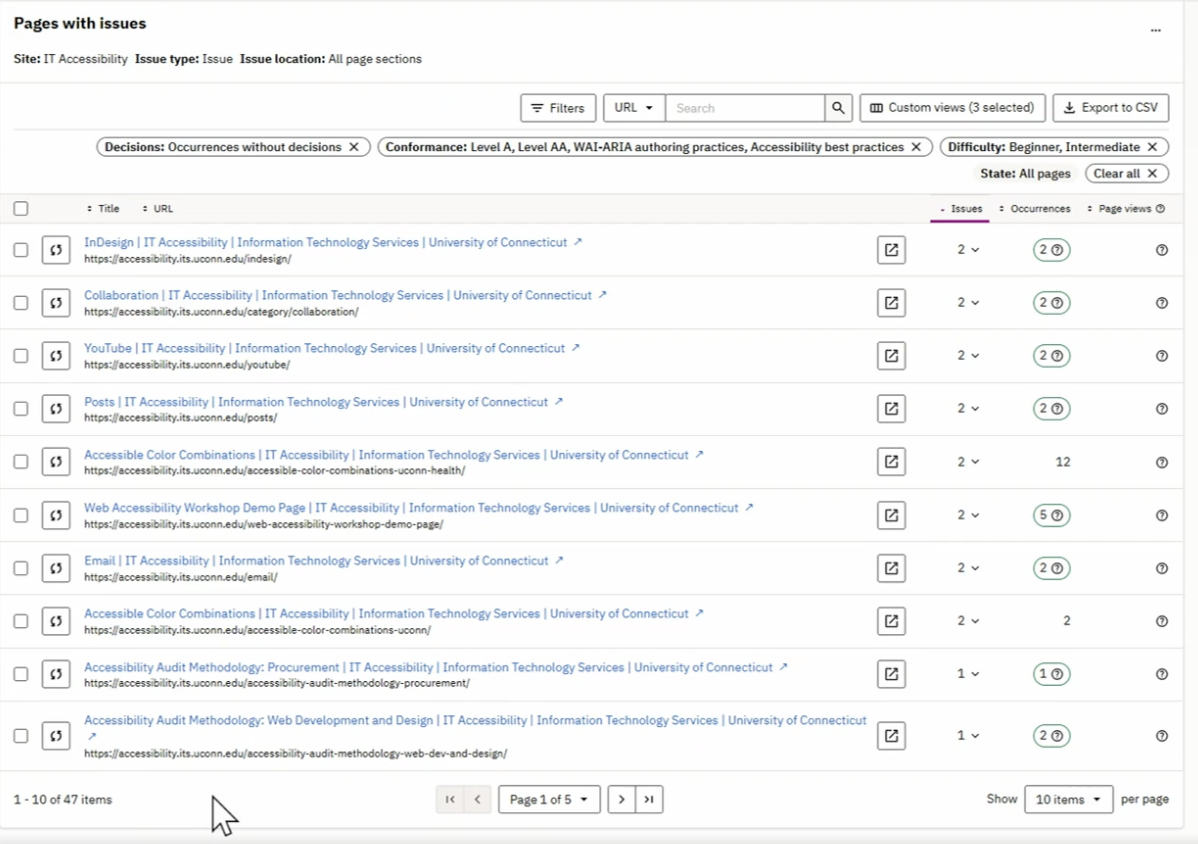
Pages with Issues
In addition to the “Issues with Pages” section which is grouped by issue, you can instead view Pages with Issues, which is organized by page rather than by issue.
Crawl Details
The crawl details are also included on the Dashboard. This provides details on when the crawl was last completed (when the website was last scanned/checked) and when the next crawl is scheduled for.

Siteimprove – Accessibility
The Accessibility tab in Siteimprove provides an overview/summary of all of the sites you manage. It also provides the following information:
- Individual Website Overview: provides an overview of individual websites
- My Sites: view all sites at once
- WCAG Guidelines: lists all of the WCAG requirements along with an explanation and their importance and impact on the end user
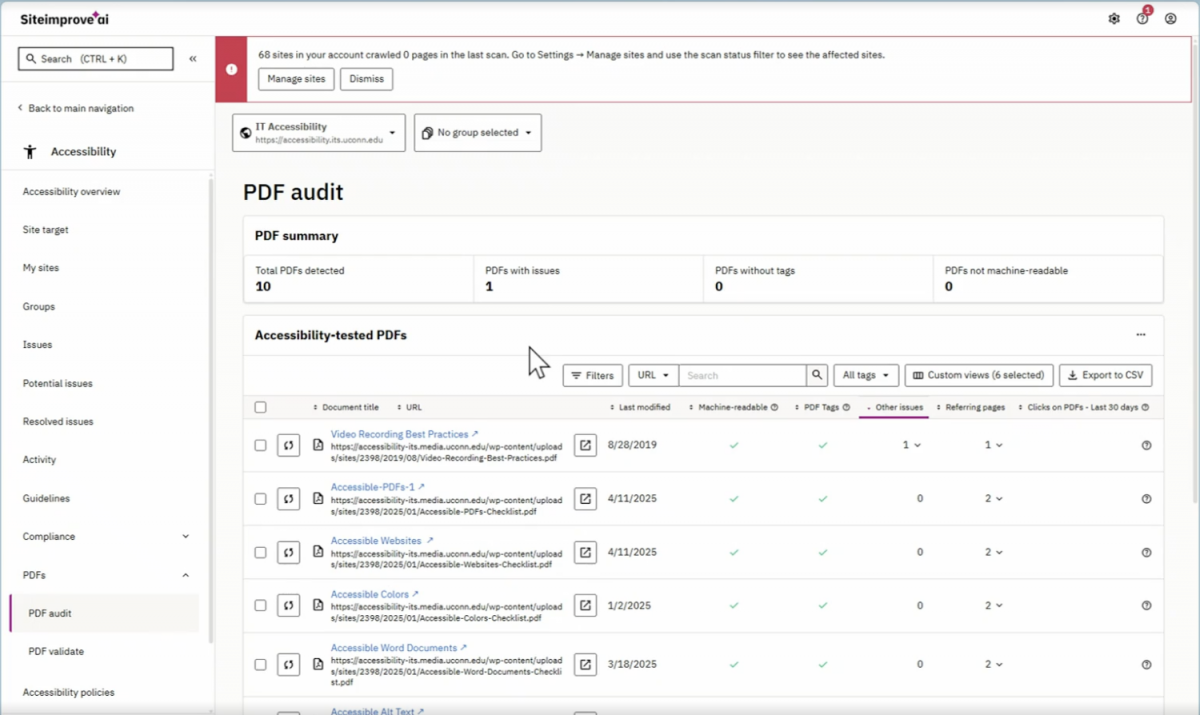
- PDF Audit: provides an audit of the accessibility of the existing PDFs on your website
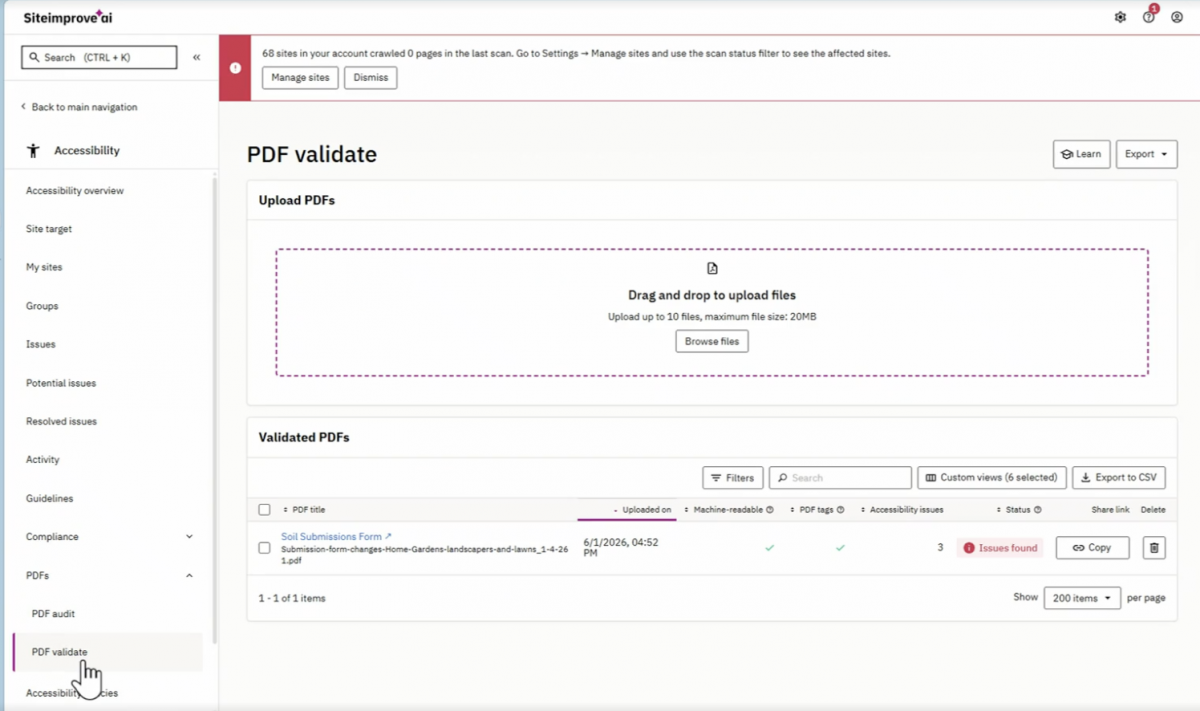
- PDF Validate: upload and validate a PDF to check its accessibility
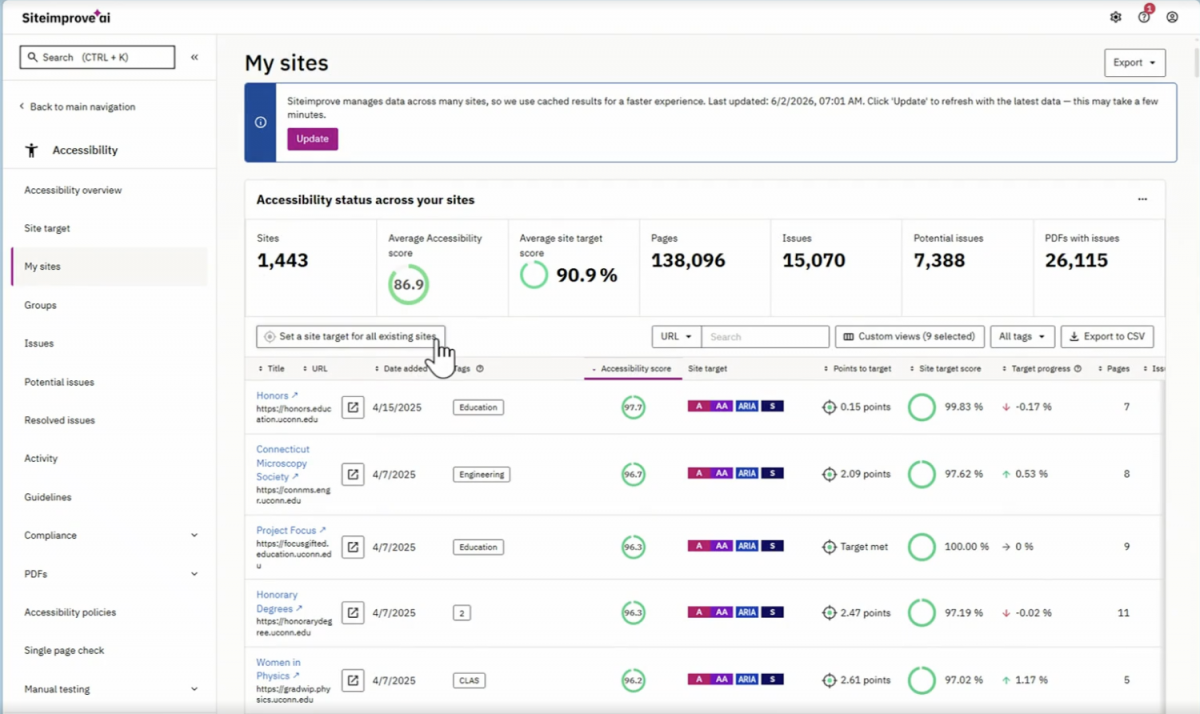
My Sites
This section of the Accessibility tab provides you with an overview of all of the sites you have access to along with their respective scores. This is useful for individuals who manage more than one website.
- You can also export this page to a CSV file if you need to share a report with management or have the information in a spreadsheet to track as you go and see the improvements made over time.
- Make sure you select “Export to CSV” in the top left and not just the “Export” section at the top, which will only generate a PDF.
The information on the My Sites section includes the following:
- Site title
- Date added
- Tags (site category)
- Accessibility Score
- Number of pages on the site
Guidelines
The Guidelines section provides a useful overview of all of the WCAG Guidelines and additional details, along with their importance and impact on the end user. These are organized by the 4 POUR principles (Perceivable, Operable, Understandable, Robust).
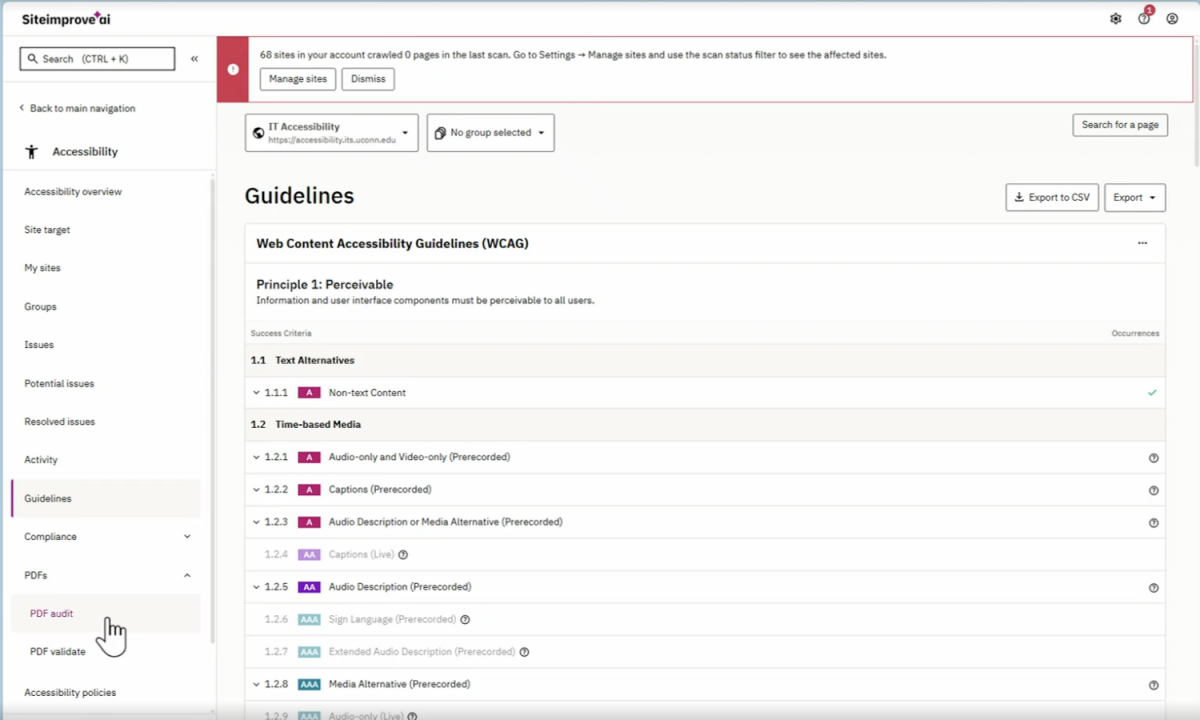
PDF Audit and Validate
Under the PDFs tab in the left navigation pane, you can also access the PDF Audit and PDF Validate.
- PDF Audit – gives you information about all of the existing PDFs on your website
- PDF Validate – you can upload and validate a PDF before adding it to your site or after you’ve made changes to it.
- Navigate to Upload > Check PDF and then the PDF validate section will check for issues and indicate if there are any.
PDF Audit
PDF Validate
Siteimprove – Quality Assurance
The Quality Assurance section of Siteimprove helps give you a better understanding of the quality of the content on your site, along with its scoring. It consists of the following information:
- Overview
- Word Inventory
- Links
- Broken Links: Pages
- Broken Links: PDFs
- Unsafe Links
- Spelling Errors
- Inventory
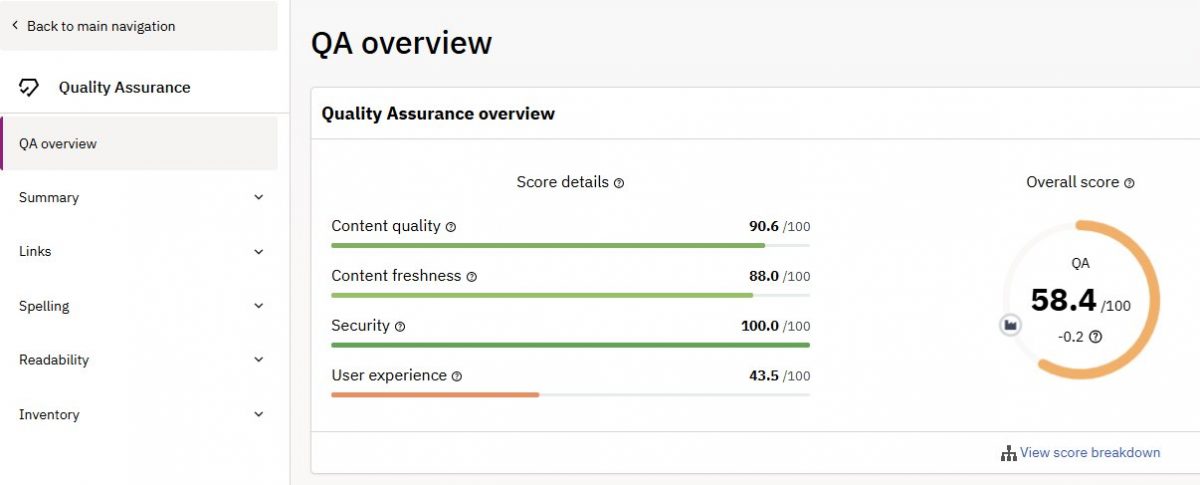
Quality Assurance
The Overall QA score is a composite of the following:
- Content quality
- Content freshness
- Security
- User experience
along with scores for each category which combine to determine your overall QA score. The QA score is not exclusively related to accessibility, rather it provides an overview of the quality of the content of your site and if people are able to access it.
The QA section also provides a summary of the links and their quality, and any issues with links in PDFs.
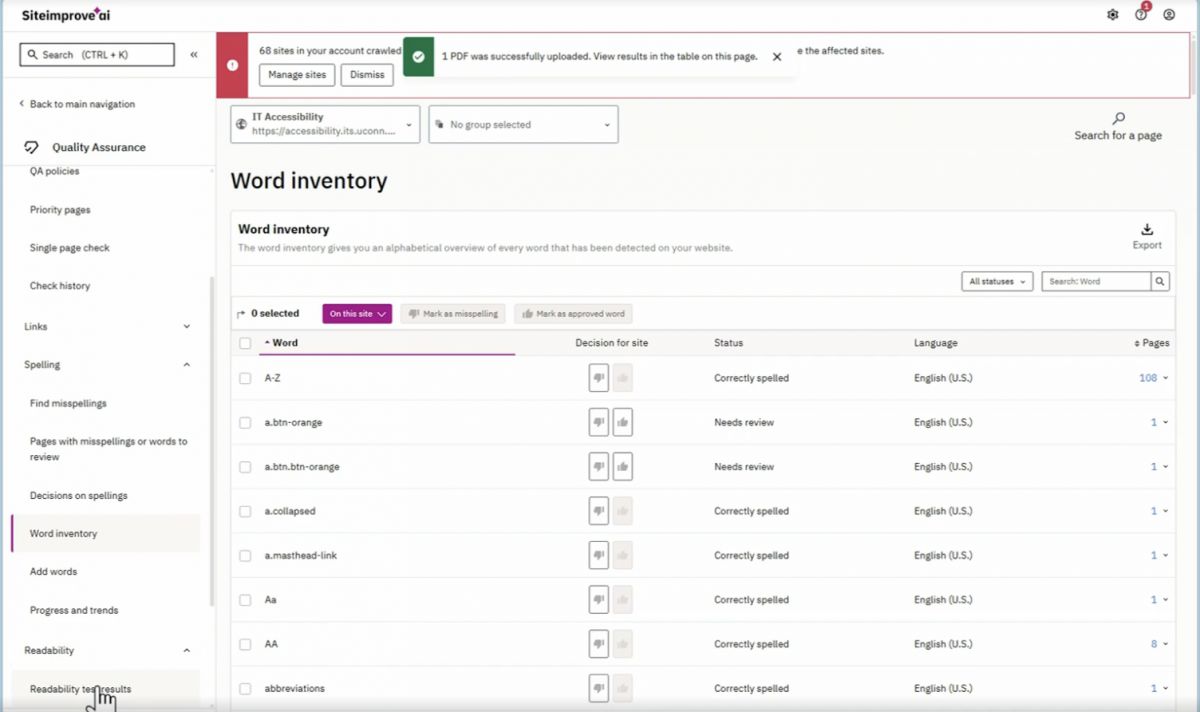
The Word Inventory provides a list of all of the words used on the site, the word status, and language.
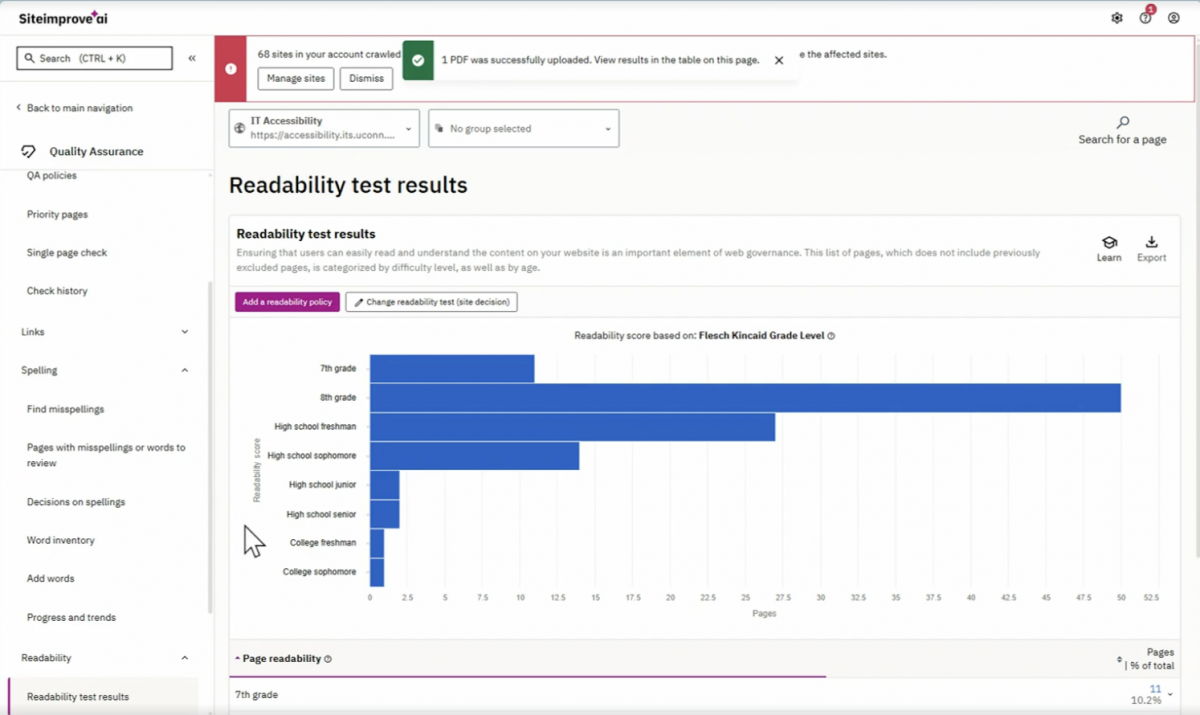
Readability test results are also included to ensure that all users can read and understand the content of your website. The readability results are organized by reading level and how many pages of your site correspond to that readability level.
Quality Assurance: Inventory
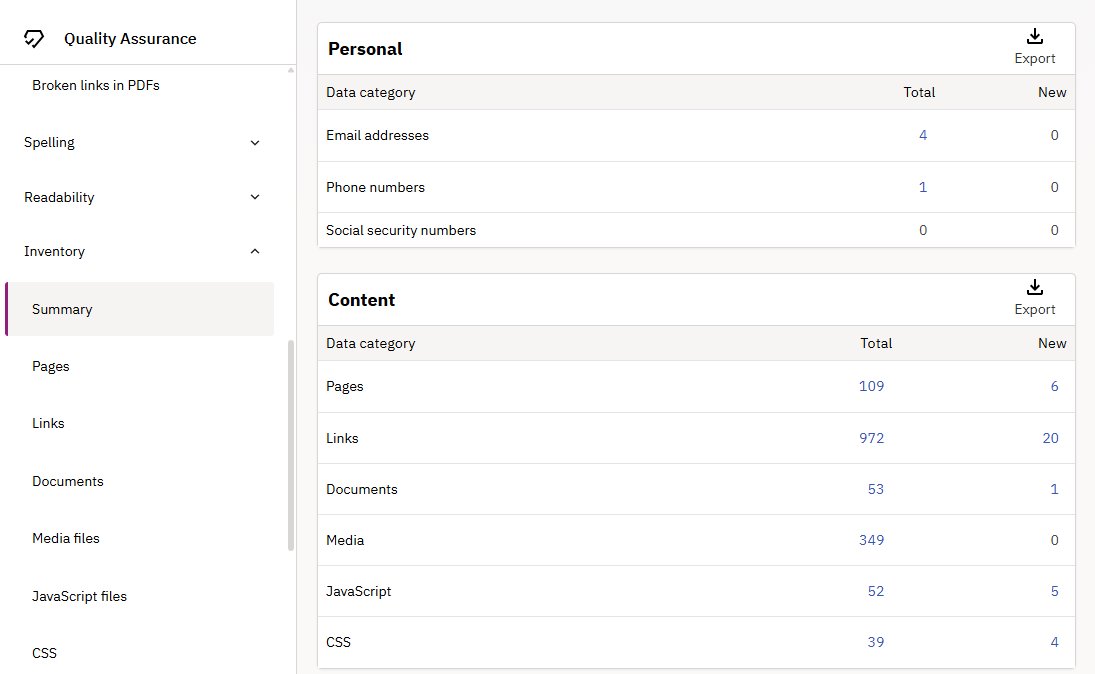
The inventory section gives you the inventory of all of the content included on your site. This includes the following:
- Pages (includes page levels)
- Links
- Documents (PDF, PowerPoint, Word, etc.
- Media (Audio, Images, Video, Flash)
- JavaScript Files
- CSS
- Link Text
- Email Addresses, Phone Numbers, SSNs Sitemap
Siteimprove FAQs
This section will include common issues/solutions with Siteimprove and frequently asked questions. For other questions or issues, reach out to ITS accessibility – itaccessibility@uconn.edu.
Fixing a false “Heading is not Descriptive” error
This video outlines what to do when getting a “Heading is not Descriptive” issue in Siteimprove but the heading is actually descriptive – there is an option to mark it as a “False Positive.”